
A vacation rental owner statement is the monthly report a property manager sends to a property owner. It lists every reservation in the period, the revenue and channel fees, the management fee, the expenses paid on the owner’s behalf, and the final payout. Below you can download our free owner statement template (Excel, works in Google Sheets), see a filled-in example line by line, and learn how to avoid the mistakes that cause owner disputes.
Free download: Vacation rental owner statement template
Excel file · works in Google Sheets and Numbers · formulas included · with a filled-in example
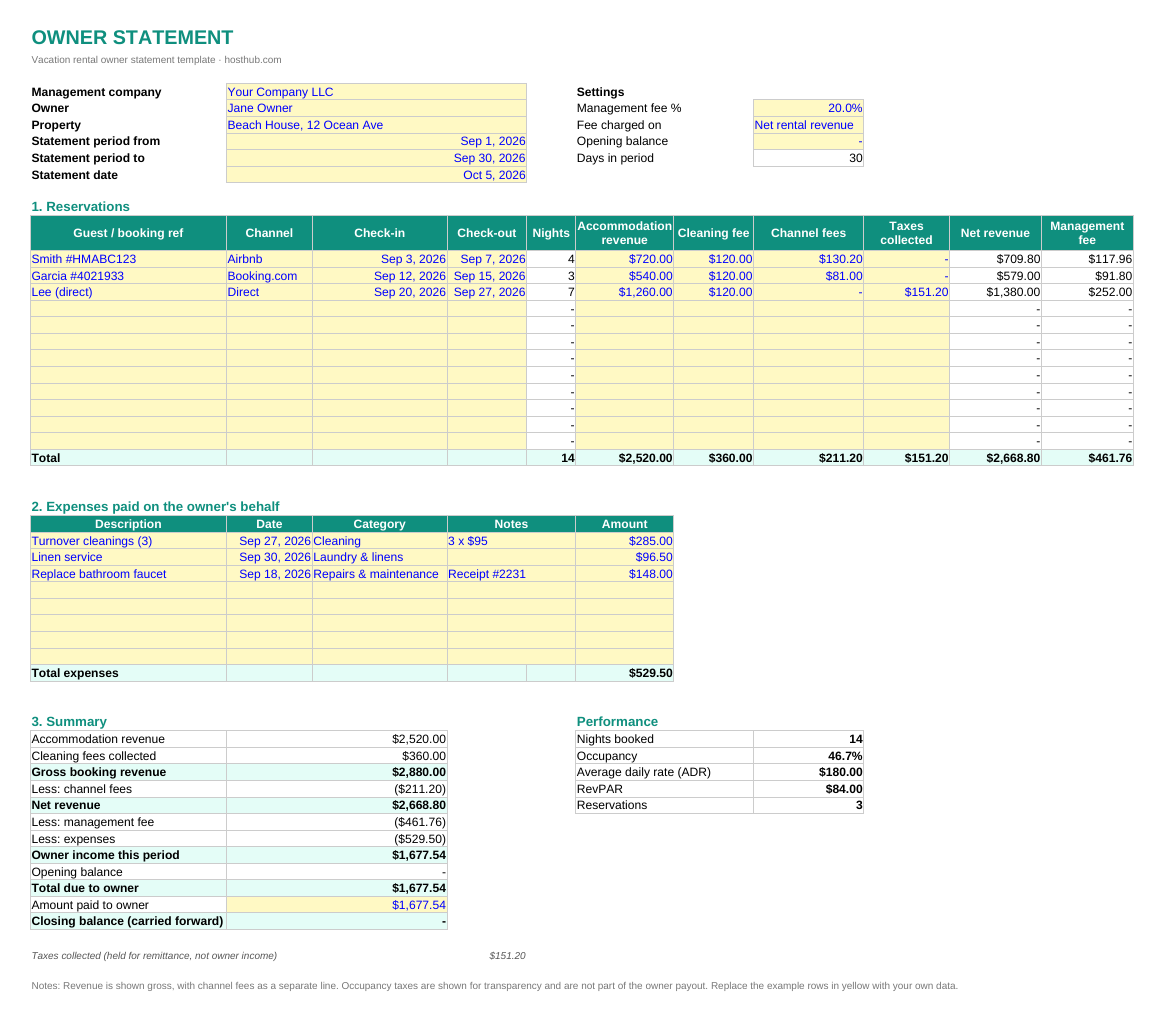
If you manage short-term rentals for other owners, the owner statement is the document they read most carefully. It is where trust is built or lost. A clear statement answers every question before the owner asks it. A confusing one leads to emails, phone calls and, eventually, an owner who takes their property to another manager.
In this guide
- What is an owner statement?
- What to include
- A worked example, line by line
- How to calculate the management fee
- Cleaning fees, taxes, deposits and refunds
- How to use the template
- Mistakes that cause owner disputes
- How to stop building statements by hand
- FAQ
What is a vacation rental owner statement?
An owner statement (also called an owner report or owner payout statement) is a periodic summary, usually monthly, that a property manager prepares for each owner. It shows:
- how much the property earned and from which bookings,
- what was deducted (channel fees, the management fee, expenses), and
- how much the owner is being paid, plus any balance carried forward.
It is not the same as a tax return or a profit and loss statement, although owners and their accountants use it to prepare both. For managers who hold owner funds, it is also part of trust accounting: the statement should reconcile with the money actually held for that owner. More on that in our guide to short-term rental accounting software.
What a good owner statement includes
Swipe the table to the right to see all columns ➜
| Section | What goes in it | Why owners care |
|---|---|---|
| Header | Your company, owner, property, statement period, statement date | Easy to file and match to payments |
| Reservations | Each stay: guest or booking reference, channel, dates, nights, accommodation revenue, cleaning fee, channel fees, taxes | They can check bookings against the calendar |
| Management fee | The fee per booking and in total, and what it is calculated on | The number most likely to be questioned |
| Expenses | Every cost paid on the owner’s behalf, with date, category and receipt reference | No surprise deductions |
| Summary | Gross revenue, deductions, owner income, opening balance, amount paid, closing balance | One number: what they get |
| Performance | Nights booked, occupancy, ADR, RevPAR | Shows how well you are managing their property |
A worked example, line by line
Here is the example in the template: a beach house managed for a 20% fee on net rental revenue, with three stays in September.
Swipe the table to the right to see all columns ➜
| Booking | Nights | Accommodation | Cleaning fee | Channel fees | Management fee (20%) |
|---|---|---|---|---|---|
| Airbnb, Sep 3–7 | 4 | $720.00 | $120.00 | $130.20 (15.5% host fee) | $117.96 |
| Booking.com, Sep 12–15 | 3 | $540.00 | $120.00 | $81.00 (15% commission) | $91.80 |
| Direct, Sep 20–27 | 7 | $1,260.00 | $120.00 | $0.00 | $252.00 |
| Total | 14 | $2,520.00 | $360.00 | $211.20 | $461.76 |
And the summary the owner sees:
- Gross booking revenue: $2,880.00 ($2,520 accommodation + $360 cleaning fees)
- Less channel fees: −$211.20, giving net revenue of $2,668.80
- Less management fee: −$461.76
- Less expenses: −$529.50 (three turnover cleanings, linen service and a faucet repair)
- Owner income for September: $1,677.54, paid in full, closing balance $0
- Performance: 14 nights booked, 46.7% occupancy, $180 ADR, $84 RevPAR
The $151.20 of occupancy tax collected on the direct booking is shown separately. It is money held for the tax authority, not owner income.
How to calculate the management fee
The single most common source of owner disputes is the base the management fee is calculated on. Your owner contract should say exactly which one you use, and your statement should match it:
- On net rental revenue: accommodation revenue minus channel fees. The owner and the manager share the cost of the platform commission. This is the default in the template.
- On gross rental revenue: accommodation revenue before channel fees. Simpler, but the owner bears the full channel cost.
- Cleaning fees and taxes are usually excluded from the base, because they are pass-through money, not rental income.
In the template, switch between the two with the “Fee charged on” setting. In our example, the fee on gross rental revenue would be $504.00 instead of $461.76, a $42 difference on one month for one property, which is exactly the kind of number owners notice.
Full-service vacation rental managers commonly charge a percentage somewhere in the range of 15% to 35%, depending on the market and what is included. Whatever your rate, show it per booking, not only as a total.
Cleaning fees, taxes, deposits and refunds
- Cleaning fees: show the fee charged to the guest as revenue and the actual cleaning cost as an expense. If the cleaning fee goes straight to your cleaning team, say so in the contract and the statement.
- Occupancy taxes: taxes collected and remitted by Airbnb or another platform usually do not appear at all. Taxes you collect yourself, on direct bookings for example, are shown for transparency but are not owner income.
- Channel fees: show them as a separate line, never netted silently into revenue. Remember that Booking.com may invoice its commission separately rather than deducting it from the payout.
- Security deposits: refundable deposits are not revenue. Only amounts kept for damage appear, with the related repair as an expense.
- Cancellations and refunds: include cancellation fees the guest paid as revenue. If a booking from a previous statement is refunded, show it as a negative line in the month it happens.
- Owner reserves: if you keep a float for repairs, show the opening balance, what was used and the closing balance.
How to use the template
- Download it and open it in Excel, Google Sheets (File › Import) or Numbers.
- Fill in the header and settings: company, owner, property, period, management fee % and the fee basis.
- Add one row per stay that checked out in the period. Yellow cells are for you to fill in. White cells calculate automatically.
- Add every expense you paid on the owner’s behalf, with a receipt reference.
- Enter what you paid the owner. The closing balance carries over to next month’s opening balance.
- Save a copy per owner per month and export to PDF to send.
The second tab, “How to use”, repeats these steps and defines every term, so you can share the file with a colleague.
Mistakes that cause owner disputes
- Showing only the payout. Owners who see one number assume the worst. Show every line.
- Netting channel fees into revenue. It hides a big cost and makes revenue look lower than the owner sees on the listing.
- Expenses without receipts. Attach or reference a receipt for every cost.
- Mixing periods. Pick a rule, for example “stays that checked out in the month”, and apply it every time.
- Sending it late. Agree a date, such as the 10th of the following month, and stick to it.
- Copy-paste errors. A spreadsheet rebuilt by hand every month will eventually have a wrong number. That is the strongest argument for automating it.
How to stop building owner statements by hand
The template works well for a handful of owners. Past that, the hours you spend copying bookings from Airbnb, Booking.com and your own records into spreadsheets add up, and so does the risk of mistakes.
With Hosthub, the data in this template is already there:
- Every booking from every channel in one place, with the financial breakdown each channel sends: booking value, cleaning fee, channel commission and payout.
- Your management fee calculated on each booking, so owners can see their share and yours.
- Expense management that splits shared costs across properties and produces a monthly profit and loss per property.
- Automated owner reports, so statements are produced from your data instead of rebuilt by hand.
- An owner portal where each owner sees bookings, occupancy and revenue for their own properties, any time, with only the access you give them.
Two Hosthub partners help too: Clyr captures receipts, matches them to each property and produces one-click owner statements (50% off the first two months with the code HOSTHUB50), and REI Hub syncs your revenue from Hosthub into rental-property accounting.
Frequently asked questions
What is an owner statement in property management?
It is a periodic report, usually monthly, from a property manager to a property owner, showing the rental income, the fees and expenses deducted and the amount paid to the owner for that period.
How often should I send owner statements?
Monthly is standard for vacation rentals, usually by an agreed date such as the 10th or 15th of the following month. Some managers also send an annual summary for the owner’s taxes.
Should the management fee be calculated on gross or net revenue?
Either can be fair. What matters is that your contract states it clearly and your statement follows it. Calculating on revenue after channel fees (net) is common, and cleaning fees and taxes are usually excluded.
Is this owner statement template free?
Yes. Download it, change it and use it for as many owners and properties as you like.
Does it work in Google Sheets?
Yes. In Google Sheets, choose File › Import and upload the file, or open it from Google Drive. All formulas work.
Can owner statements be generated automatically?
Yes. Software such as Hosthub produces owner reports from your bookings and expenses, calculates your management fee on each booking and gives owners their own portal.
The template and examples are for general information and do not replace your owner contract or advice from your accountant. Figures in the example are illustrative.